
Dynamic Residential Proxies Quick Start Guide
Dynamic Residential Proxies
Quick Start Guide
Quick Start Guide
Blurpath dynamic residential proxies rotate the exit IP on every request by default, drawing on ISP-assigned household addresses across more than 190 countries. Because each request can leave from a different real device, the traffic looks like ordinary local browsing instead of datacenter traffic — which is exactly what makes this pool the right pick for price monitoring, SERP tracking and ad verification at scale. Traffic is billed by the gigabyte, so you only pay for what you actually pull.
In this guide you can learn more about how to use Blurpath dynamic residential proxies.
Register for a Blurpath Account
Before you start using Blurpath dynamic residential proxies, register an account first.
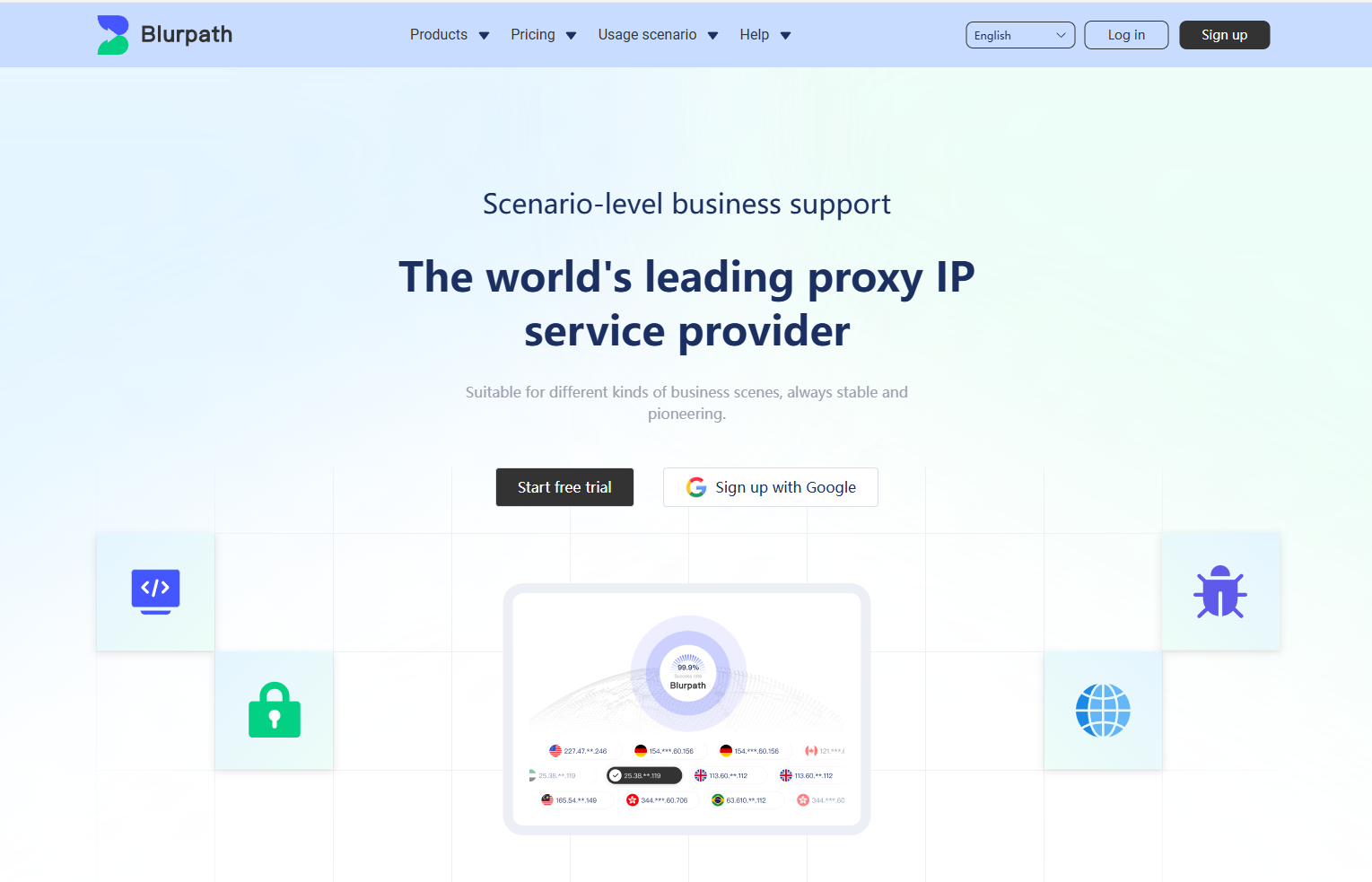
Visit the official website homepage and click [Start free trial] to sign up.
Purchase a Dynamic Residential Traffic Package
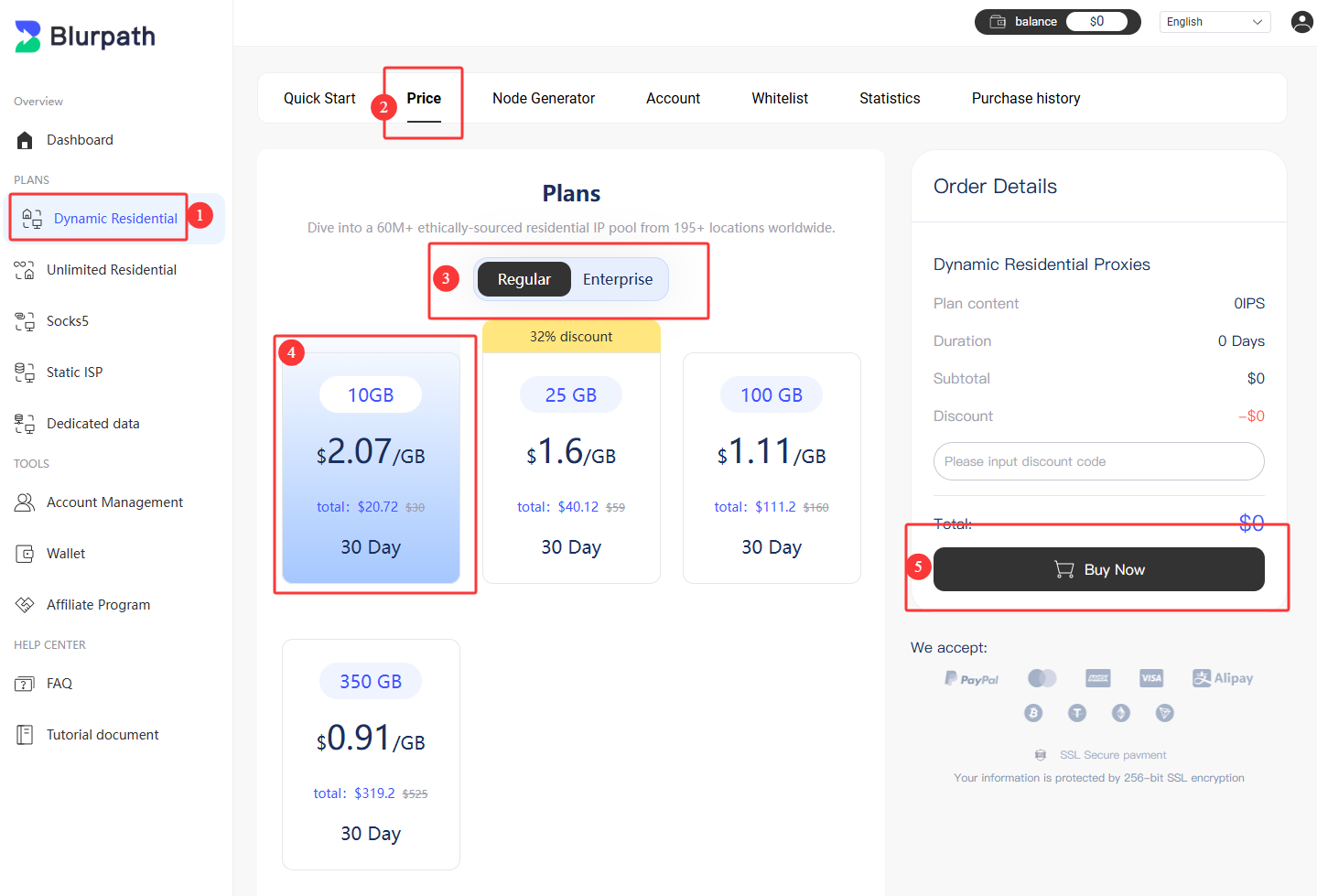
- From the left-hand menu, select Dynamic Residential
- Click [Price] to open the traffic purchase page
- Pick the traffic volume that matches your monthly scraping budget, then click [Buy now]
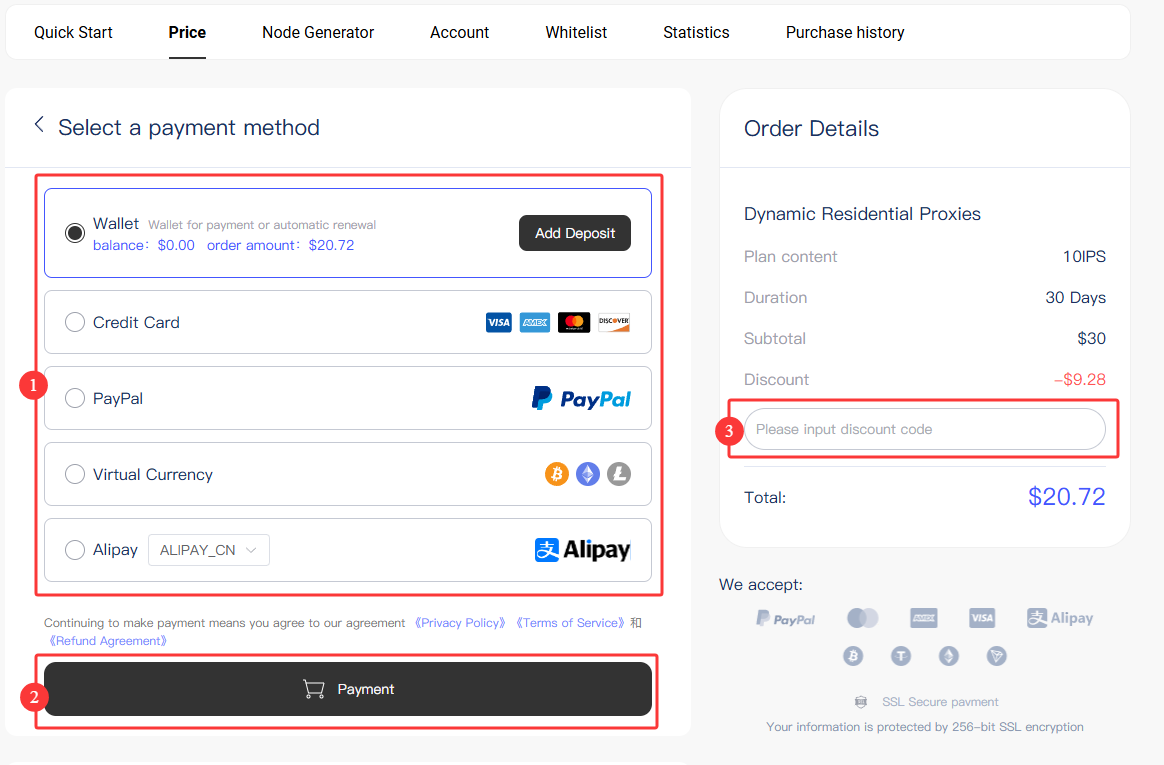
- On the payment screen, choose the payment method you prefer
- Click the payment button to complete the order
Tips: if you have a coupon code, enter it in the coupon code field.
Payment methods supported by Blurpath
- Wallet
- Credit Card
- Cryptocurrency
- PayPal
- Alipay
The traffic is credited to your account as soon as the order is paid, and you can start extracting dynamic residential proxies straight away.
Get Dynamic Residential Proxies from Your Dashboard
Dynamic residential proxies are handed out through two authentication modes: username and password, or an IP whitelist. Both are described below. Most teams begin with username and password, then switch to a whitelist once their scraping servers have fixed outbound IPs.
Username and Password Authentication
Add an account:
- Go to the dashboard and select Dynamic Residential
- Click the Account button in the top navigation to open account management
- Click [Add an account] on the right to open the creation form.
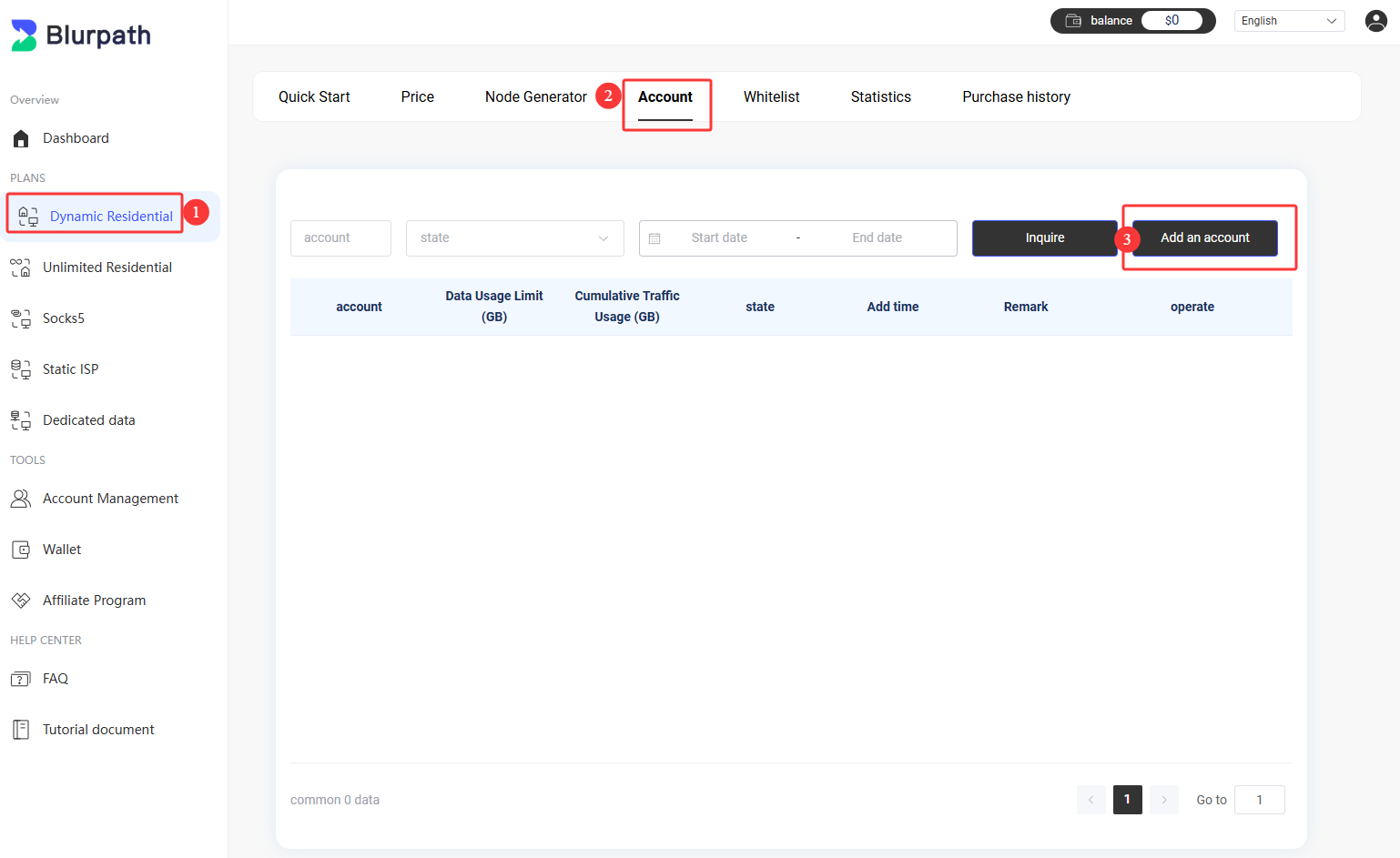
On the account creation page, enter the username, password, status and usage quota (in MB) you want, then confirm.
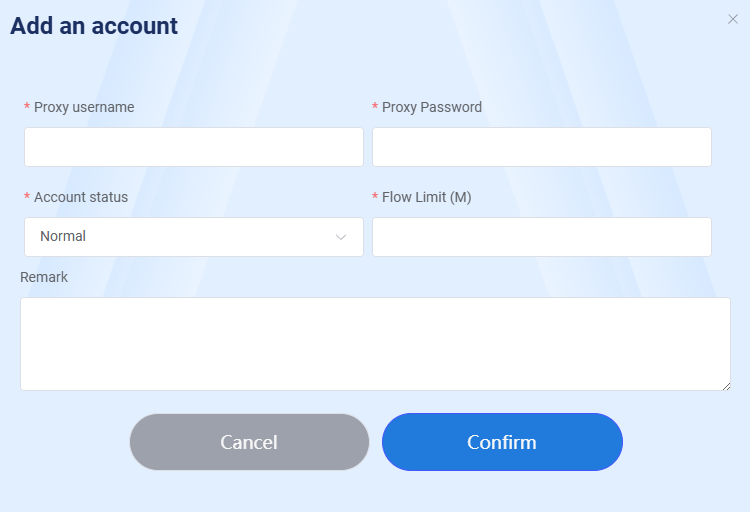
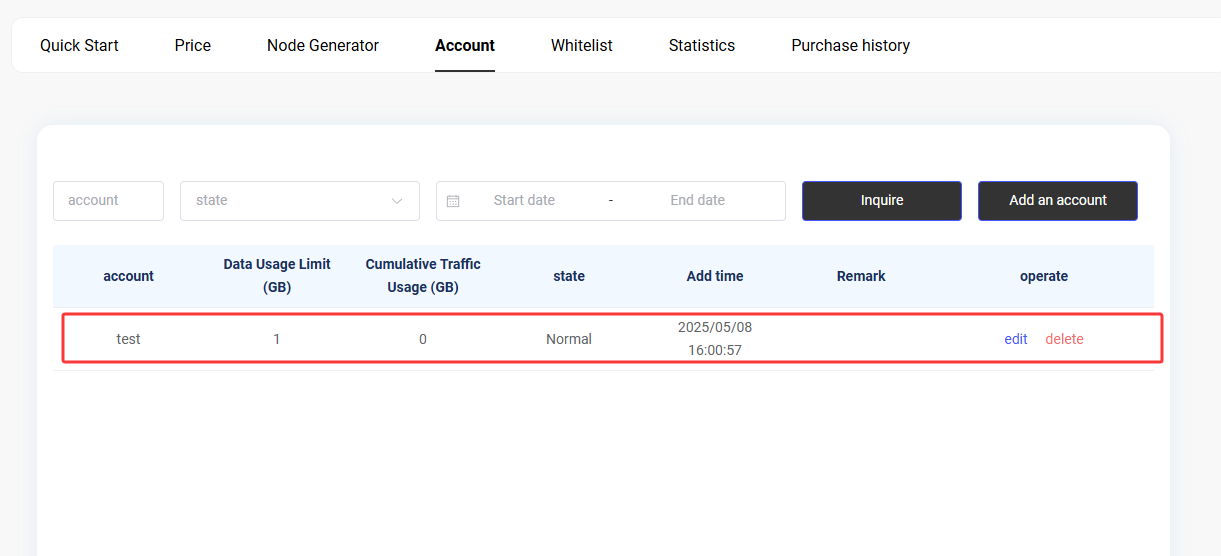
Once the account exists, switch to Node Generate in the top navigation to reach the credential page.
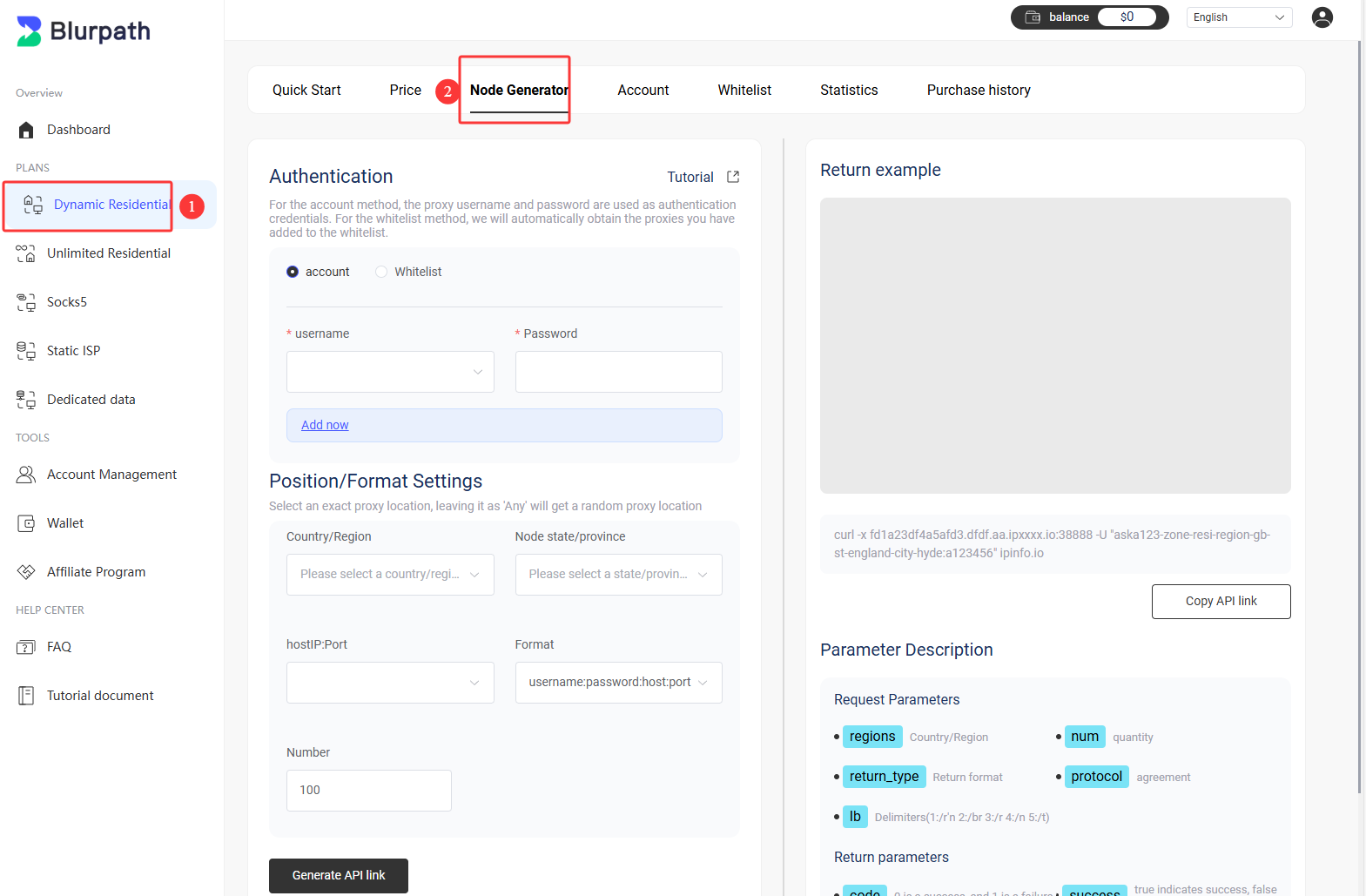
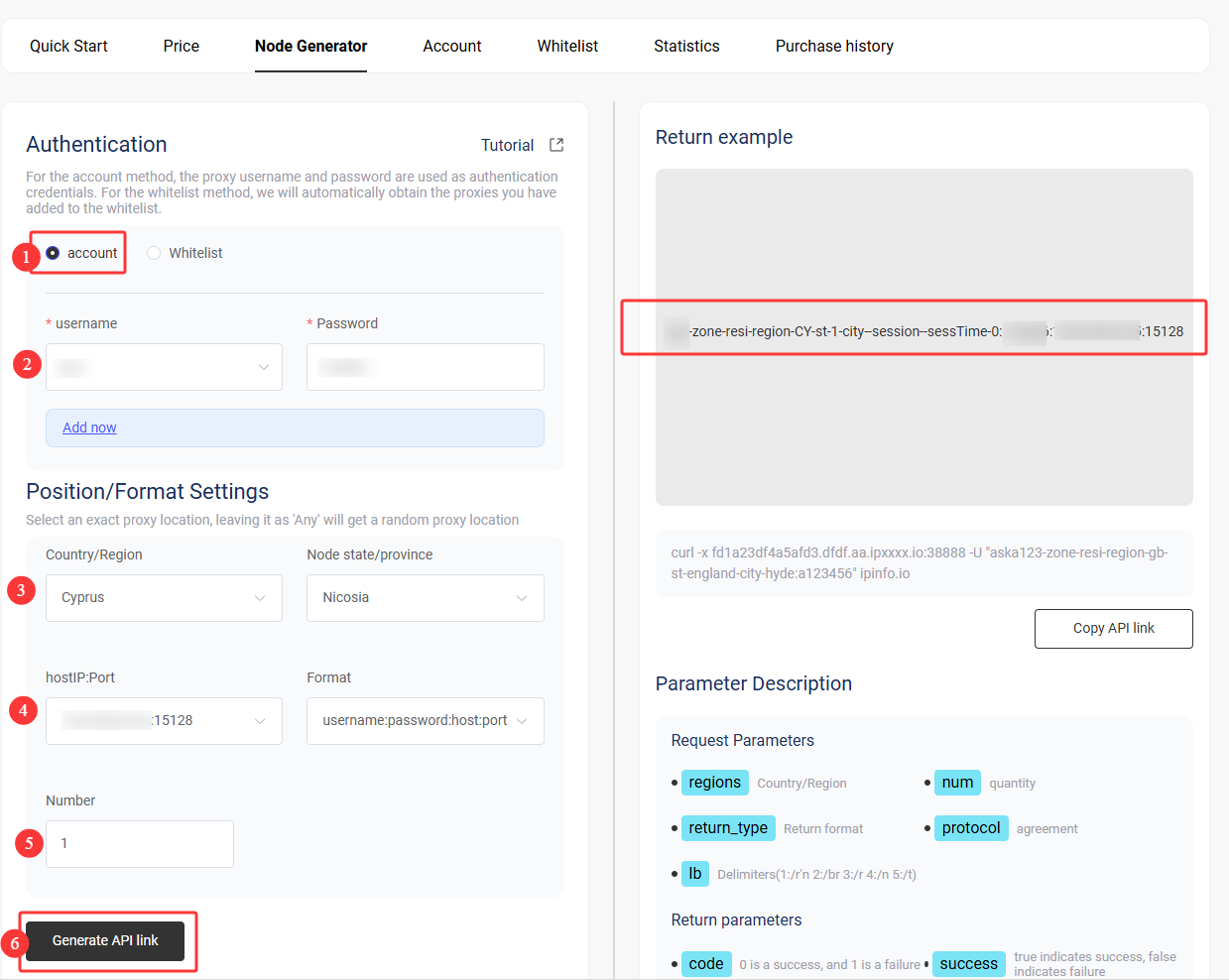
Username and password settings:
- Select the account you have just created
- Choose the region the exit IP should come from
- Pick the IP and port, and the output format
- Enter how many proxies you need
- Choose the session type — rotating on every request, or sticky
- Click [Generate API links] to produce the ready-to-use endpoints
IP Whitelist Authentication
Add an IP whitelist:
- Go to the dashboard and select Dynamic Residential
- Click Whitelist to open IP whitelist management
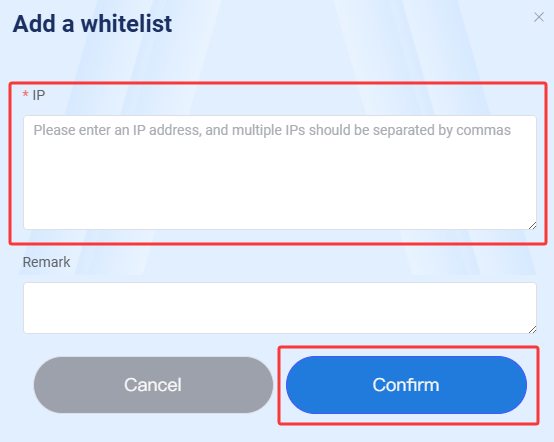
- Click [Add a whitelist] on the right to open the form.
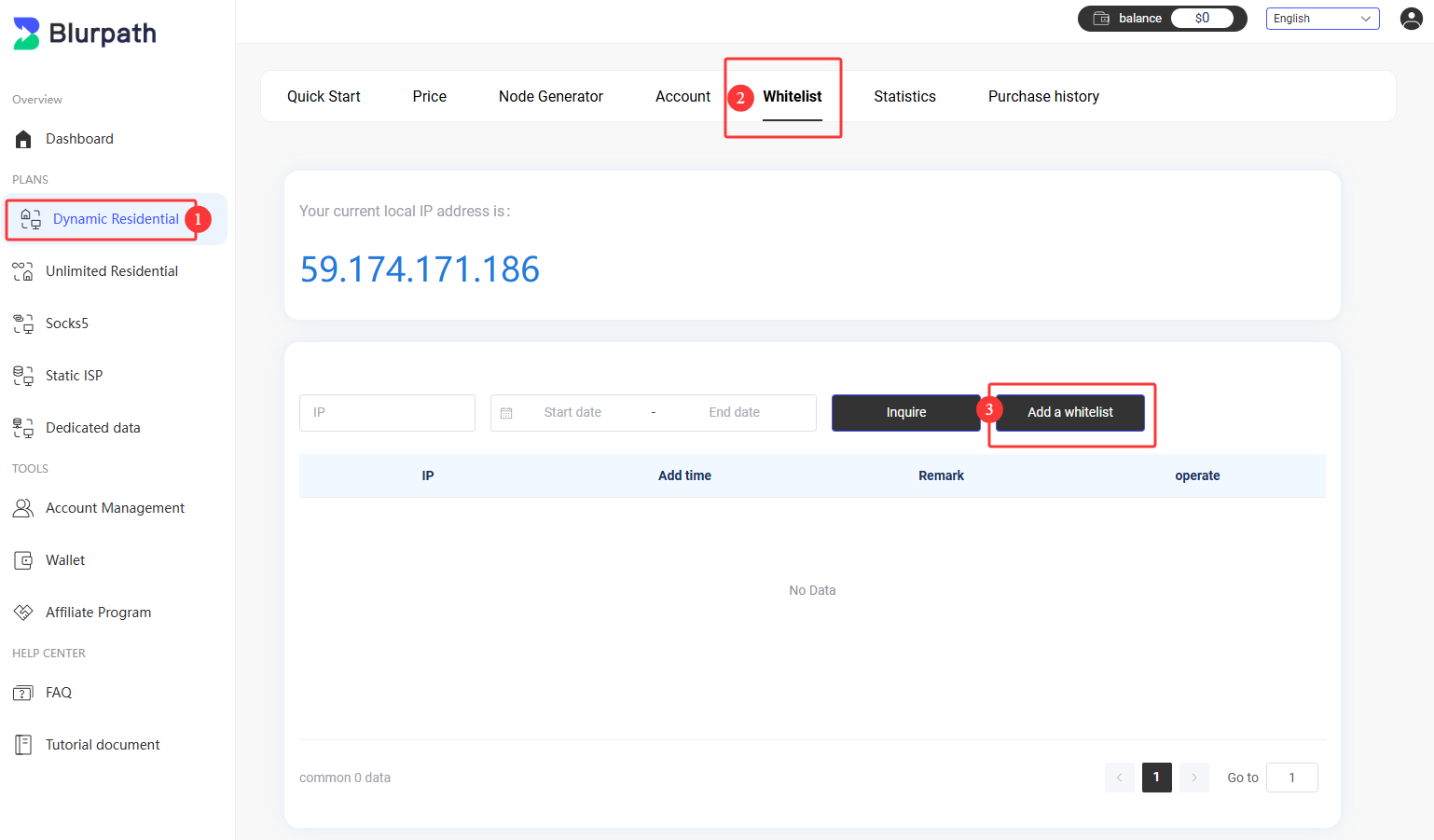
Enter the specific IP address you want to authorise, then confirm. Note: an authorised IP can use dynamic residential proxies without sending a username and password.
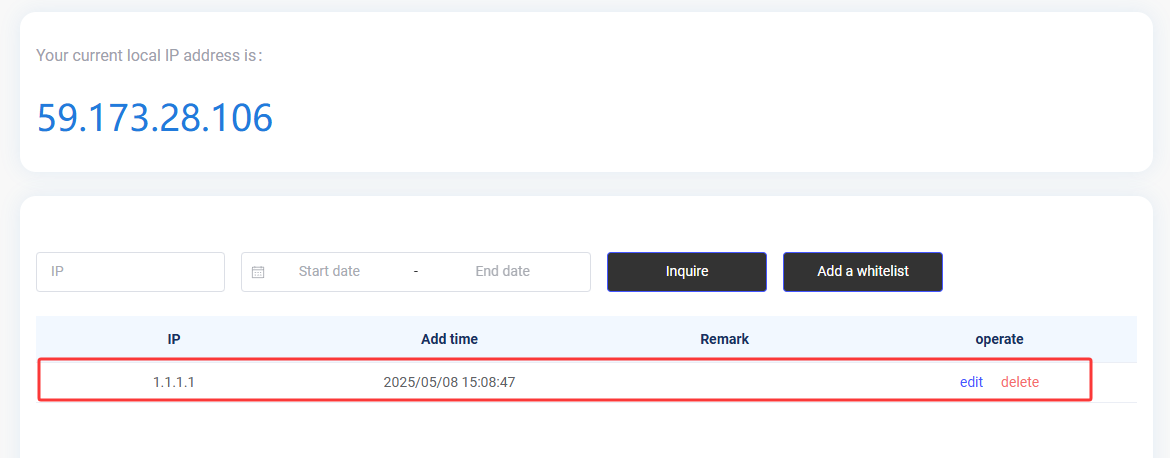
After the whitelist entry is created, choose Node Generate in the top navigation and set the authentication mode to whitelist.
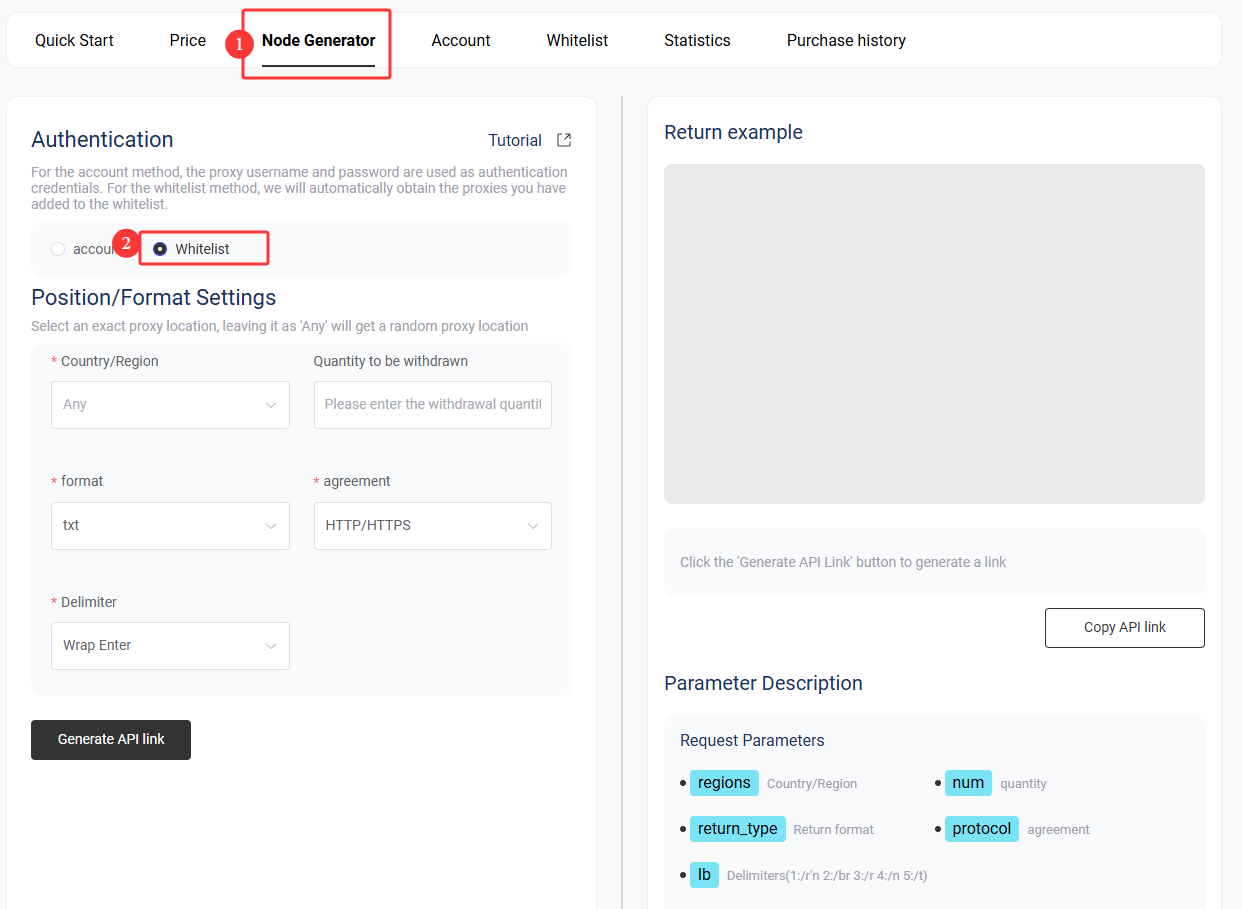
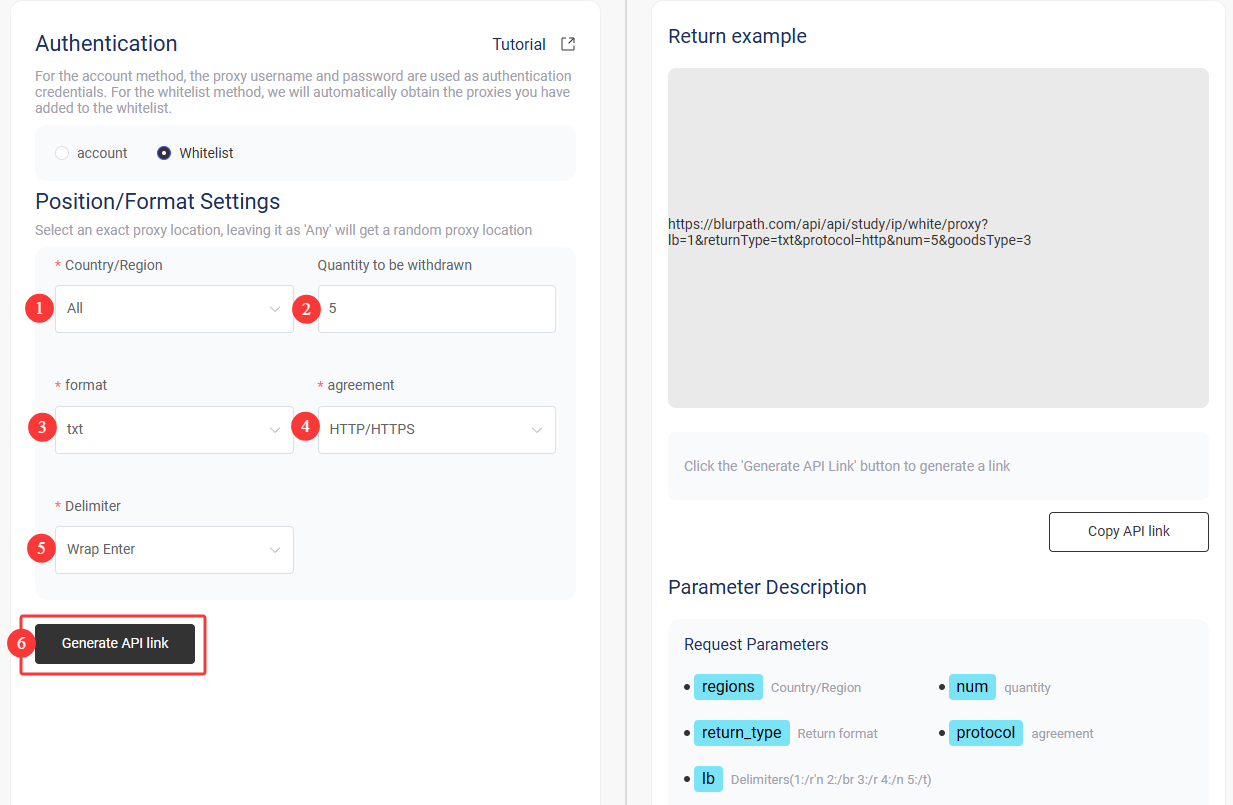
IP whitelist settings:
- Select the country or region
- Select how many APIs to extract
- Select the output format
- Select the proxy protocol: HTTP / HTTPS / SOCKS5
- Select the delimiter
- Click [Generate API links] to build the corresponding endpoints
Traffic and Usage Statistics
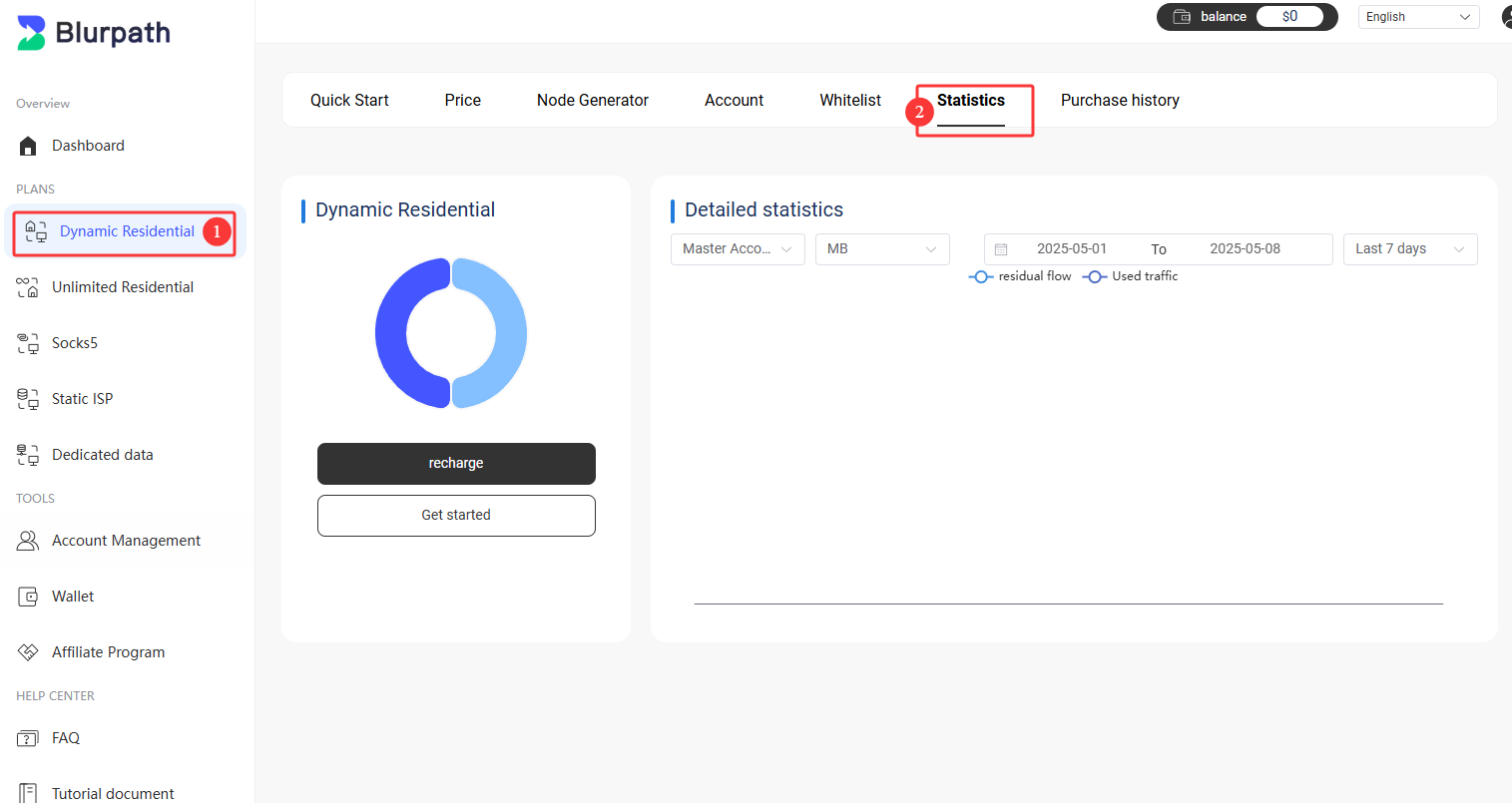
- Go to the dashboard and select Dynamic Residential
- Click the [Statistics] button to open the details view
- Here you can see the traffic still left on your package and how much you have already consumed.
Other
We have compiled tutorials on integrating Blurpath dynamic residential proxies with third-party tools to help you get started. View
Documentation.
Related Articles
Static Residential Proxies
Quick Start Guide
Quick Start Guide
Static Residential Proxies Quick Start Guide
In this guide, you can learn more about how to use Blurpath static residential proxies.
2025-04-02
Unlimited Residential Proxies
Quick Start Guide
Quick Start Guide
Unlimited Residential Proxies Quick Start Guide
In this guide, you can learn more about how to use Blurpath Unlimited residential proxies.
2025-04-03
Datacenter Proxies
Quick Start Guide
Quick Start Guide
Datacenter Proxies Quick Start Guide
In this guide, you can learn more about how to purchase and use Blurpath datacenter proxies.
2025-04-03